
5 Blender Mo-cap Addons You Should Know in 2026
Motion capture is no longer limited to large animation studios with dedicated stages and expensive equipment. Blender artists can now work with live capture, video-based tracking, external motion protocols and existing mo-cap files, then re-target that movement onto their own characters.
Blender already supports formats such as BVH for skeletal motion capture, but addons can make the process much more practical when you need live streaming, video-based capture, re-targeting or cleanup.
1. Rokoko Studio Live
Best suited for: Real-time mo-cap, live streaming and re-targeting
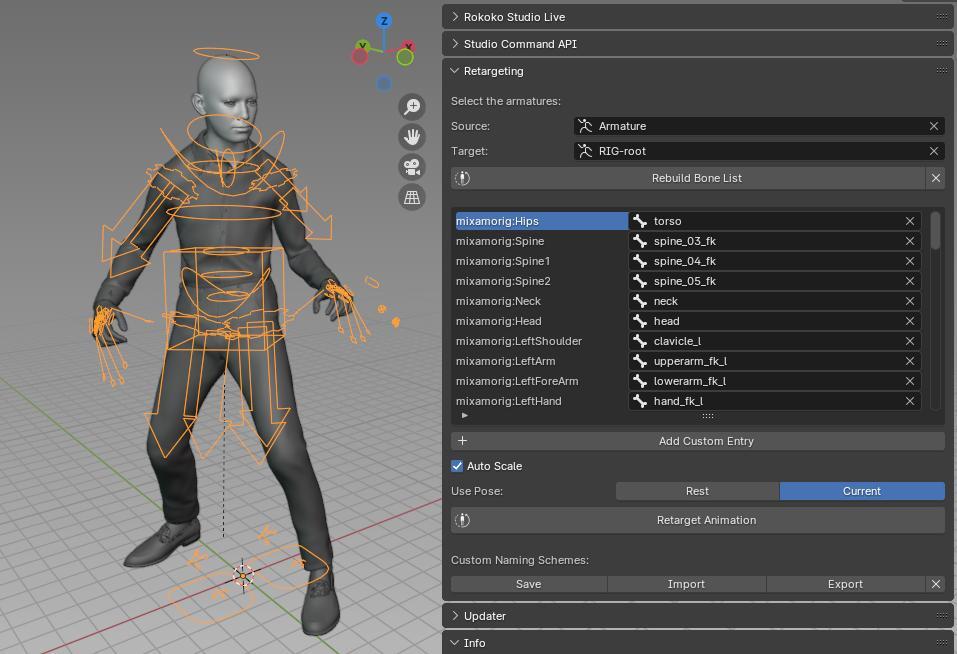
Rokoko Studio Live is the official Blender integration for Rokoko Studio. It can stream motion capture data from Rokoko Studio directly into Blender and includes re-targeting features for applying captured movement to different character rigs.
The Rokoko workflow can combine full-body capture with finger and facial capture, depending on the capture setup. Rokoko also offers Vision, a video-to-animation system, alongside its dedicated capture hardware.
A typical workflow looks like:
- Actor performs a movement
- Rokoko captures the performance
- Rokoko Studio processes the motion
- The Blender integration streams or transfers the animation
- The motion is re-targeted to the character
This is useful when you want to see the captured performance on your character while you are working, rather than waiting until the end of the capture process.
2. BlendCap
Best suited for: Video-based body, hand and facial performance capture
BlendCap takes a camera-based approach. Its current Blender add-on includes capture for body, hands and facial performance, along with re-targeting presets for Rigify, Auto-Rig Pro, CloudRig and Mixamo.
That makes it interesting for independent animators who want to record a performance without building a traditional mo-cap setup. The latest listed release, version 1.0.5 from August 2026, added improvements to body grounding, floor detection and smoothing.
A practical workflow is:
- Record a performance on video
- Process the video through BlendCap
- Generate the captured motion
- Retarget the motion to the chosen character rig
- Clean up the animation where necessary
Video-based capture should not be treated as a replacement for every professional mo-cap setup. It is better understood as a fast way to generate usable motion that can then be refined.
3. MoCap AI
Best suited for: Local video-to-motion capture inside Blender
MoCap AI is a Blender add-on built around a local capture pipeline. Its documentation describes body, face and hand capture from video, with re-targeting support for Rigify, Auto-Rig Pro, Mixamo and custom humanoid rigs.
The current documentation lists Blender 4.2 through 5.1 compatibility and says the processing is performed locally using MediaPipe and OpenCV. The add-on can create a captured armature and action from a video, and its cleanup tools include foot-sliding correction.
The local approach is notable because it keeps the capture pipeline on the user’s machine rather than requiring the video to be uploaded to a remote service.
The workflow can be as simple as:
- Choose a video
- Select Body, Body plus Face, Body plus Hands or Full capture
- Process the video
- Generate the motion
- Retarget it to the production character
- Clean the result
4. VMC Link
Best suited for: Real-time VMC and OSC motion data
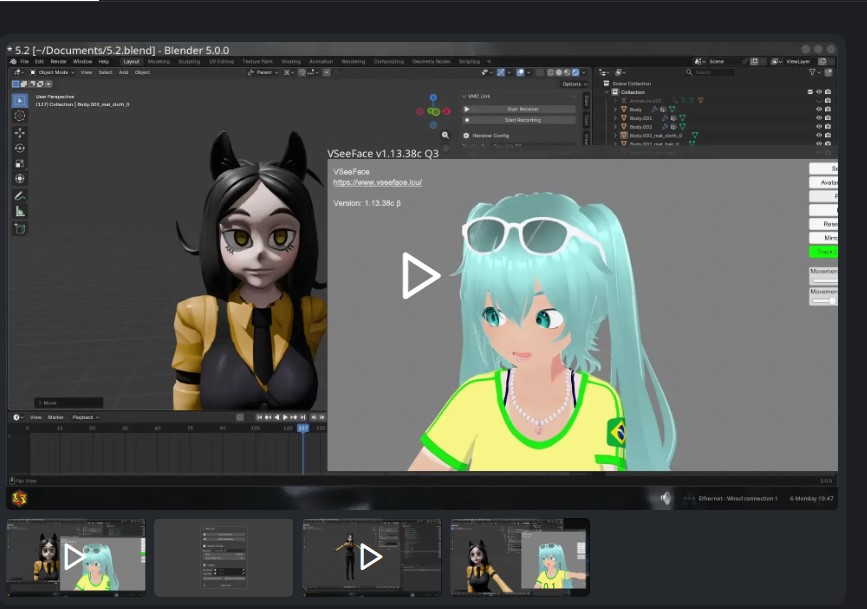
VMC Link takes a different approach. It does not try to generate the motion itself. Instead, it receives live VMC or OSC motion data from another application and applies that data to a selected Blender armature and facial mesh.
The Blender extension supports body bones, fingers, eye movement and facial shape keys for visemes and expressions. It also includes recording, manual bone mapping and configurable receiver settings.
Think of the pipeline as:
- Motion capture application
- VMC or OSC data
- VMC Link
- Blender character
This makes VMC Link particularly useful when Blender is part of a wider real-time character pipeline and another application is responsible for tracking the performer.
5. Mo-cap Bone Lock
Best suited for: Cleaning foot sliding and stabilizing mo-cap
Capturing motion is only part of the job. Raw mo-cap often needs cleanup, especially when feet or hands slide when they should remain planted.
Mo-cap Bone Lock is designed specifically for this type of cleanup. It can lock selected bones in place over a frame range, with manual and automatic modes, and can bake the result while preserving the original motion workflow.
The developer’s current listing includes Blender 5.x support and an update for Auto-Rig Pro and similar rigs. This makes it a useful companion after re-targeting, when the captured movement is technically correct but still needs contact cleanup.
A common cleanup workflow is:
- Capture or import mo-cap
- Retarget it to the character
- Identify foot or hand sliding
- Lock the affected bone over the relevant frames
- Bake and inspect the result
For longer mo-cap clips, this kind of targeted cleanup can save time compared with correcting every drifting foot position manually.
Which tool handles which part of the pipeline?
| Tool | Primary role | Typical input |
| Rokoko Studio Live | Live capture, streaming and retargeting | Rokoko capture data |
| BlendCap | Body, hand and facial capture | Video |
| MoCap AI | Local video-to-motion capture | Video |
| VMC Link | Live motion receiver | VMC / OSC |
| Mocap Bone Lock | Mocap cleanup | Existing animation |
You do not need all five
The right tool depends on where your motion data comes from and what problem you are trying to solve.
- Already have video? Look at BlendCap or MoCap AI.
- Use Rokoko capture hardware? Rokoko Studio Live is the natural Blender connection.
- Receive VMC or OSC data from another application? VMC Link is designed for that.
- Already have mo-cap and need cleanup? Mo-cap Bone Lock addresses a different stage of the workflow.
In a production environment, more than one tool may be used. For example, a studio could capture a performance with one system, re-target it to a custom rig, then use a cleanup tool to correct foot contacts.
What this means for Blender artists
The bigger trend is not simply that Blender has more mo-cap add-ons. The important change is that motion capture is becoming easier to combine with ordinary video, real-time tracking and software-based re-targeting.
That gives independent artists more ways to start with a real performance and turn it into a 3D animation. It also changes the role of the animator. Instead of manually creating every movement from the beginning, the animator can capture a performance, re-target it, clean the data and then focus on timing, acting, composition and storytelling.
For character animation, mo-cap is therefore best treated as a starting point rather than a finished animation. The strongest results still depend on good rigging, sensible re-targeting and thoughtful cleanup.
Final thoughts
Blender’s mo-cap ecosystem now covers several different needs, from live performance capture to video-based tracking, external motion streaming and animation cleanup.
The most useful question is not ‘Which mo-cap add-on is the best?’ It is ‘Where does my motion data come from, and what do I need to do with it?’ Once that is clear, choosing the right tool becomes much easier.
Leave a Reply